Samsung Frame TV User Manual: A Comprehensive Guide
Welcome! This guide details setup, features, and troubleshooting for your Samsung Frame TV, covering everything from initial connections to advanced SmartThings integration.
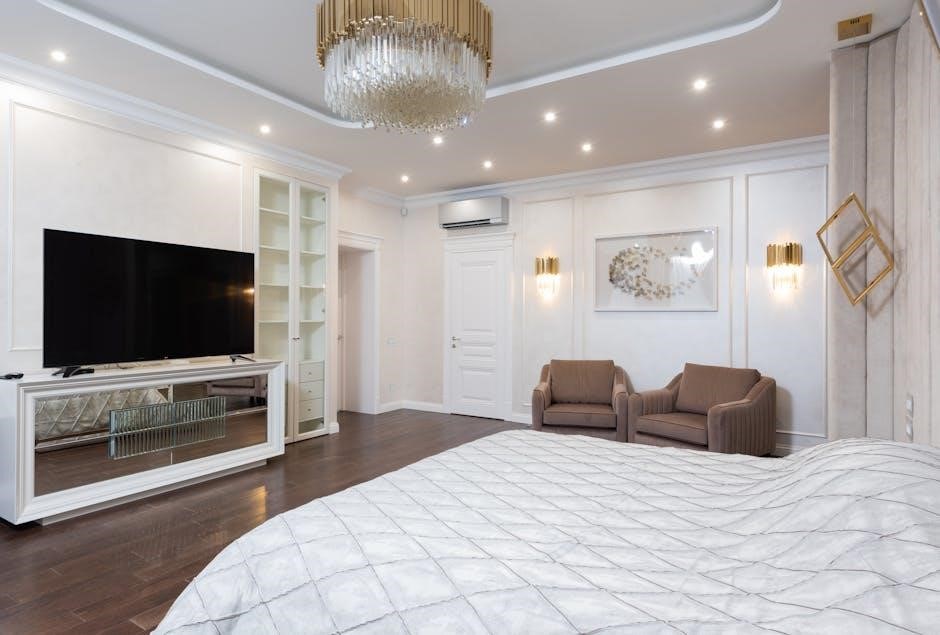
The Frame is more than just a television; it’s a revolutionary lifestyle product designed to seamlessly blend into your home décor; When turned off, it transforms into a beautiful art display, showcasing a curated collection or your personal photos. This manual provides a comprehensive overview of your Frame TV, guiding you through setup, operation, and advanced features like Art Mode and Smart TV capabilities.
Experience stunning picture quality alongside a design that elevates your living space. We’ll cover everything from unboxing and connecting devices to utilizing the SmartThings app for complete home integration. Prepare to redefine your viewing experience!
Unboxing and Initial Setup
Carefully unpack your Frame TV, ensuring all components are present. Inspect for any shipping damage before proceeding. Initial setup involves connecting the power cord and following the on-screen prompts. You’ll be guided through language selection, network connection (Wi-Fi or Ethernet), and Samsung account login or creation.
Take your time during this process to ensure a smooth experience. The TV will automatically scan for available software updates – it’s recommended to install these for optimal performance and access to the latest features. Keep the packaging for potential future transport or warranty claims.
Package Contents
Your Samsung Frame TV package should include the TV itself, a One Connect Box (housing connection ports), a Slim Fit Wall Mount (for optional mounting), and the Smart Remote. You’ll also find a power cable, an optical audio cable, and a user manual.
Depending on the model and region, additional items like a VESA mount adapter might be included. Carefully verify all listed components against the included documentation. If anything is missing or damaged, contact Samsung support immediately for assistance and replacements. Retain the original packaging materials.

Stand Installation & Wall Mounting Options
The Frame TV offers both stand installation and wall mounting. For stand installation, carefully attach the included stand to the TV’s base, ensuring a secure fit. Wall mounting requires a VESA-compatible mount (sold separately, unless the Slim Fit Wall Mount is used).
Always consult a professional installer for wall mounting to ensure safety and proper alignment. Consider cable management solutions to conceal wires for a clean aesthetic. Verify your wall can support the TV’s weight before proceeding with installation.
Connecting Your Frame TV
Connecting your Frame TV is straightforward. Begin by connecting the One Connect Box to the TV using the included optical cable. Then, connect your external devices – such as Blu-ray players, soundbars, and gaming consoles – to the One Connect Box using HDMI cables.
Ensure proper cable organization for a clean setup; Power on the TV and connected devices. The TV will automatically detect most devices. For network connectivity, connect an Ethernet cable or configure Wi-Fi during the initial setup process.
Input Ports Explained (HDMI, USB, Ethernet, etc.)
Your Frame TV features several input ports. HDMI ports support high-bandwidth connections for devices like Blu-ray players and gaming consoles, offering optimal video and audio quality. USB ports allow connection of external storage devices for media playback. An Ethernet port provides a stable wired network connection.
Additionally, there’s an Optical Audio Out for soundbars, and potentially component/composite inputs (depending on the model). The One Connect Box simplifies connections, minimizing cables directly to the TV itself.

Connecting External Devices (Soundbars, Blu-ray Players)
Connecting external devices enhances your Frame TV experience. For soundbars, use the HDMI ARC (Audio Return Channel) or Optical Audio Out port on the One Connect Box for superior audio. Blu-ray players and gaming consoles connect via HDMI for both video and audio. Ensure you select the correct input source on your TV after connecting.
Utilize high-speed HDMI cables for 4K/HDR content. The One Connect Box’s streamlined design minimizes cable clutter, providing a clean setup.
Navigating the Smart TV Interface
The Samsung Frame TV utilizes the Tizen OS, offering a user-friendly interface. Access apps, settings, and content via the home screen. Use the directional pad on the Smart Remote to navigate. The interface is organized into customizable panels, displaying your favorite streaming services and connected devices.
Quick access to settings is available via the settings icon. Explore features like Multi-View and Ambient Mode directly from the home screen. Regularly check for software updates to ensure optimal performance and access to new features.
Tizen OS Overview
Tizen OS is Samsung’s intuitive smart TV platform, powering the Frame TV’s functionality. It provides seamless access to a vast library of streaming apps, including Netflix, Amazon Prime Video, and Disney+. The OS prioritizes speed and responsiveness, ensuring smooth navigation and quick app loading times.
Tizen features Bixby voice control, allowing hands-free operation. Regular software updates enhance performance and introduce new features. The platform also supports SmartThings integration, enabling control of compatible smart home devices directly from your TV.
Using the Smart Remote
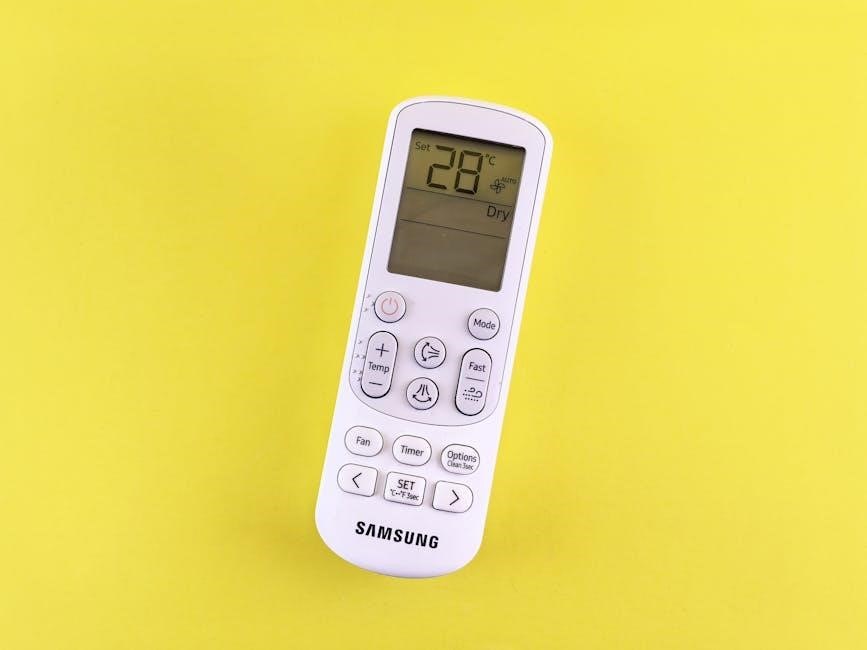
The Smart Remote simplifies TV control with its minimalist design and intuitive button layout. It features dedicated buttons for popular streaming services, voice control via Bixby, and a circular directional pad for easy navigation. Unlike traditional remotes, it automatically pairs with your Frame TV upon initial setup.
The remote utilizes Bluetooth for a stable connection, eliminating the need for direct line-of-sight. You can also control compatible devices connected to your TV, such as soundbars and Blu-ray players, streamlining your entertainment experience.
Art Mode: Displaying and Managing Artwork
Art Mode transforms your TV into a stunning art piece when not in use. Access a vast library of pre-loaded artwork, or upload your own photos via USB. The built-in motion sensor detects presence, activating or deactivating the display to conserve energy.

Customize the artwork’s appearance with adjustable brightness and zoom levels. You can also select different mat options to mimic a framed painting. Explore curated collections and discover new artists through the Art Store, enhancing your home décor with personalized visual experiences.
Accessing the Art Store
The Art Store is your gateway to a diverse collection of artwork for your Frame TV. From the Home screen, navigate to the Art Store app. You’ll find a wide range of options, including classic masterpieces, contemporary photography, and digital art.
Browse by category, artist, or style. Many artworks are available through a subscription service, offering unlimited access to a rotating selection. Individual purchases are also possible. Regularly updated content ensures a fresh and inspiring visual experience, transforming your TV into a dynamic art display.
Customizing Art Settings (Brightness, Zoom, etc.)

Personalize your art display! Within Art Mode, access the settings menu to fine-tune the visual presentation. Adjust brightness to suit your room’s lighting conditions, ensuring optimal visibility. Utilize the zoom function to crop and frame artwork precisely to your preference. Explore options like contrast and color tone for further refinement.
Experiment with layout settings to add or remove borders. The ‘Auto Rotate’ feature cycles through your collection. Save your preferred settings as presets for quick access and a truly customized art experience.

Troubleshooting Common Issues
Experiencing problems? This section addresses frequent concerns. No sound often resolves with a volume check, ensuring the TV isn’t muted and external devices are correctly connected. Remote control issues may require new batteries or re-pairing; For software update failures, verify a stable internet connection and consider checking AHCI/RAID settings on connected PCs.
If facing network connectivity problems, reboot your router and TV. Samsung Magician errors during firmware updates can sometimes be resolved by ensuring the system is in AHCI mode.
No Sound Issues & Remote Control Problems
No Sound: First, verify the TV volume isn’t muted and check connected audio devices (soundbar, receiver) are powered on and correctly input selected. Ensure HDMI-CEC (Anynet+) isn’t causing conflicts. If using the TV speakers, test with different sources.
Remote Control: Replace batteries. If still unresponsive, try re-pairing the remote (refer to the initial setup guide). Interference from other devices can sometimes be a factor. A malfunctioning remote may require replacement.
Software Update Failures & Samsung Magician Issues
Update Failures: If a TV software update fails, first restart the TV. Ensure a stable internet connection. For persistent issues, try a USB update (download from Samsung support).

Samsung Magician: Problems with Samsung Magician often relate to SATA mode. Ensure your system is in AHCI mode, not RAID, for proper SSD firmware updates. Reinstalling Magician and running as administrator can also resolve launch or update errors. Check Samsung forums for specific SSD model solutions.
Network Connectivity Problems
Troubleshooting: If your Frame TV won’t connect, verify your router is functioning correctly and broadcasting a signal. Restart both the TV and the router. Check the TV’s network settings – ensure automatic IP assignment is enabled, or manually input correct DNS settings.
Wireless Issues: Distance from the router, interference, and firewall settings can cause problems. Try a wired Ethernet connection for stability. Confirm your router’s firmware is up-to-date. Samsung support offers network diagnostic tools.
Samsung Messages App Features & Settings
Messaging Options: While primarily a mobile app, linking your Samsung account allows message syncing. Within the Samsung Messages app (on a paired phone), explore settings for multimedia messages and group conversations. Ensure ‘Group conversation’ is toggled on to enable this feature.
Recent Updates: Users report dissatisfaction with recent app updates, citing a lack of serious features. Consider using Google Messages as an alternative if functionality is insufficient. Check for app updates regularly via the Galaxy Store.
Enabling Group Chat
Group Messaging Setup: To activate group chat functionality within the Samsung Messages app (accessed via a linked mobile device), navigate to the app’s settings menu. Locate the section pertaining to ‘Multimedia messages’ or a similarly named option, dependent on your phone’s software version.
Toggle Activation: Within this section, you’ll find a toggle switch labeled ‘Group conversation.’ Ensure this toggle is switched to the ‘on’ position. This enables the creation and participation in group message threads. Verify functionality by sending a test message to multiple contacts.
Firmware Updates & Samsung Magician Software
Maintaining Optimal Performance: Regularly updating your Samsung SSD’s firmware via Samsung Magician software is crucial for stability and performance. The software checks for available updates and facilitates a streamlined installation process. However, issues can arise; some users report failed updates when the system operates in Intel RST (RAID) mode.
AHCI Configuration: Samsung Magician functions best with AHCI mode enabled in your BIOS. Switching from RAID to AHCI may resolve update failures. Ensure secure boot is disabled if booting from a USB drive for firmware updates. Always back up data before any firmware modification.
Checking for and Installing Updates
Staying Current: Samsung regularly releases firmware updates to enhance performance and address potential issues. Within Samsung Magician, a dedicated section automatically checks for available updates for your connected SSD. If an update is found, the software guides you through the installation process.
Troubleshooting: If updates repeatedly fail, verify your system is configured for AHCI mode in the BIOS, not RAID. Secure Boot may also interfere; temporarily disabling it can resolve installation problems. Always create a backup before initiating any firmware update.
Resolving Firmware Update Errors (AHCI/RAID Mode)
AHCI vs. RAID: Samsung Magician often fails to update firmware when your system operates in Intel Rapid Storage Technology (RAID) mode. Switch to AHCI (Advanced Host Controller Interface) in your BIOS settings before attempting an update. This ensures proper drive recognition and communication.
BIOS Configuration: Access your BIOS during startup (usually by pressing Del, F2, or F12). Locate the SATA configuration and change it from RAID to AHCI. Save changes and reboot. Then, retry the firmware update via Samsung Magician. Back up your data beforehand!
Advanced Picture Settings
Fine-tuning Your Display: The Frame TV offers extensive picture customization. Explore settings like Brightness, Contrast, Sharpness, and Color Tone for a personalized viewing experience. Expert Settings unlock granular control over color space (e.g., BT73, D65), gamma, and white balance.
Calibration Options: For optimal accuracy, consider utilizing calibration tools or professional services. Adjusting these advanced settings can significantly enhance picture quality, delivering vibrant colors and detailed images. Remember to note original settings before making changes!
Calibration Options
Achieving Picture Perfection: For precise color accuracy, the Frame TV supports various calibration methods. Utilize the built-in Calibration tools within the picture settings menu, or leverage external calibration discs and software. Professional calibration services offer the most accurate results, tailoring the display to your specific viewing environment.
Key Settings: Focus on White Balance (Red, Green, Blue adjustments), Gamma correction, and Color Management System (CMS) controls. These settings allow for fine-tuning to industry standards, maximizing picture fidelity and realism.
Using the Samsung SmartThings App
Unified Home Control: The Samsung SmartThings app seamlessly integrates your Frame TV with a broader smart home ecosystem. Download the app (iOS or Android) and connect your TV for remote control, content mirroring, and automation possibilities.
Device Integration: Control compatible smart lights, thermostats, and other devices directly from your TV interface via SmartThings. Create routines to automatically adjust settings based on time of day or activity. Enjoy a truly connected and convenient entertainment experience.
Device Integration & Control
Smart Home Harmony: Through SmartThings, your Frame TV becomes a central hub for controlling compatible smart devices. Manage lighting, adjust thermostats, and monitor security systems directly from your TV screen, simplifying your smart home experience.
Voice Control Enabled: Utilize voice assistants like Bixby, Alexa, or Google Assistant (when linked through SmartThings) to control your TV and connected devices hands-free. Enjoy effortless control and a truly immersive, connected lifestyle within your home environment.